Vedu App for Firestick: Install in 5 Easy Steps (2026 Guide)
Quick answer: Install the free Downloader app from the Amazon Appstore and turn on “Install Unknown Apps” for it. Then open Downloader, type downloadveduapp.com, and install the Vedu APK. Five minutes, start to finish. You only do it once.
Phones are great for a quick episode on the bus. For a full movie, though? You want the TV.
A Fire TV Stick is one of the cheapest ways to get there. But if you’ve already searched the Amazon Appstore for Vedu, you know the problem. It isn’t there. No listing, no Install button, nothing.
That doesn’t mean you can’t have it. Getting the Vedu app for Firestick just takes a slightly different route, and we’ll walk you through every click of it. Got an Android TV or Google TV instead? Our Vedu for Smart TV guide covers that.
What Is the Vedu App for Firestick?
Vedu is a free app for streaming movies and TV shows. It was built for Android.
Here’s the useful part. Your Fire Stick runs Fire OS, and Fire OS is built on Android. So the same Vedu APK file that runs on your phone runs on your Fire Stick too.
Since the app comes as a file and not from a store, you install it by “sideloading.” That word sounds technical. It isn’t. It just means installing an app from a file you downloaded yourself, and Amazon added the option to every Fire Stick on purpose.
Which Fire TV Devices Can Run Vedu?
Almost any Fire Stick from the last few years will do the job. Here’s how the common models compare:
| Device | Runs Vedu? | What to Expect |
|---|---|---|
| Fire TV Stick (3rd Gen) | Yes | Smooth HD playback |
| Fire TV Stick Lite | Yes | Works fine, but storage fills up fast |
| Fire TV Stick 4K / 4K Max | Yes | The best pick for picture quality |
| Fire TV Cube | Yes | Fastest of the lot |
| Fire TV Smart TVs (Toshiba, Insignia, etc.) | Yes | Same steps as a Fire Stick |
| 1st Gen Fire Stick | Maybe | Often too old or too slow |
Before you install the Vedu app for Firestick, check your storage. If your Fire Stick has less than 1 GB free, installs fail and videos buffer constantly. Delete a few unused apps before you start.
What You’ll Need
Nothing fancy. Just make sure you have:
- A Fire TV Stick or Fire TV device plugged into your TV
- Internet speed of at least 5 Mbps (for HD)
- Around 100 MB of free space, plus room to buffer
- Your Fire TV remote
- The Downloader app (Step 1 covers this)
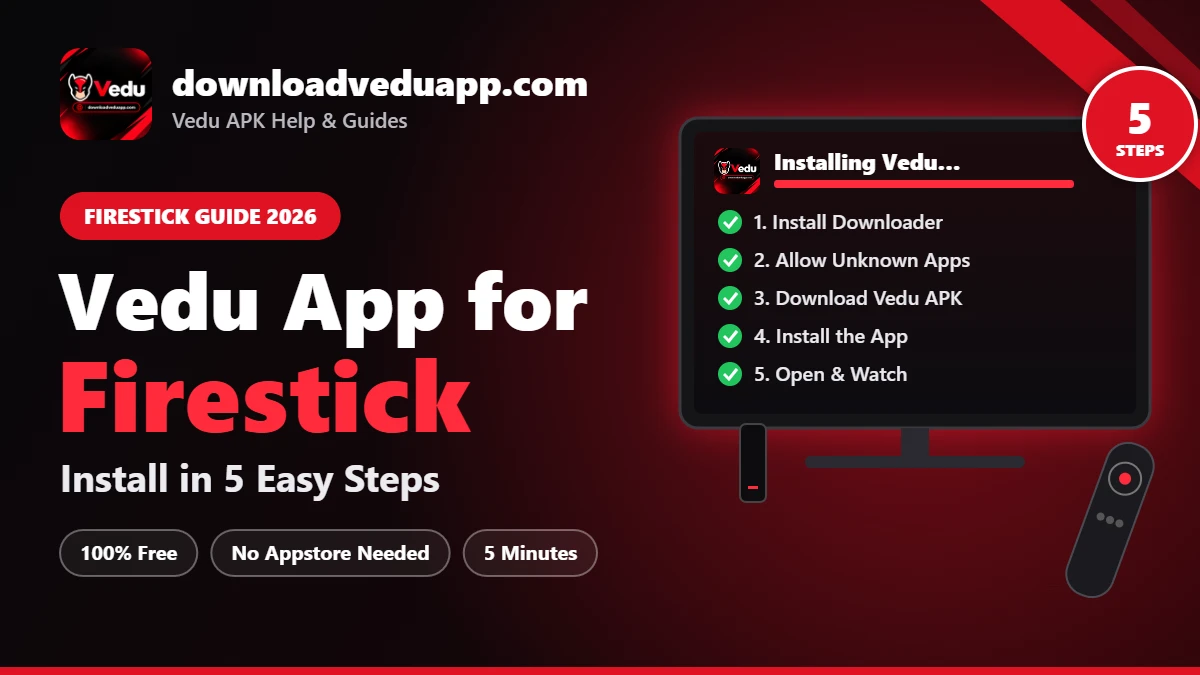
How to Install Vedu App for Firestick in 5 Steps
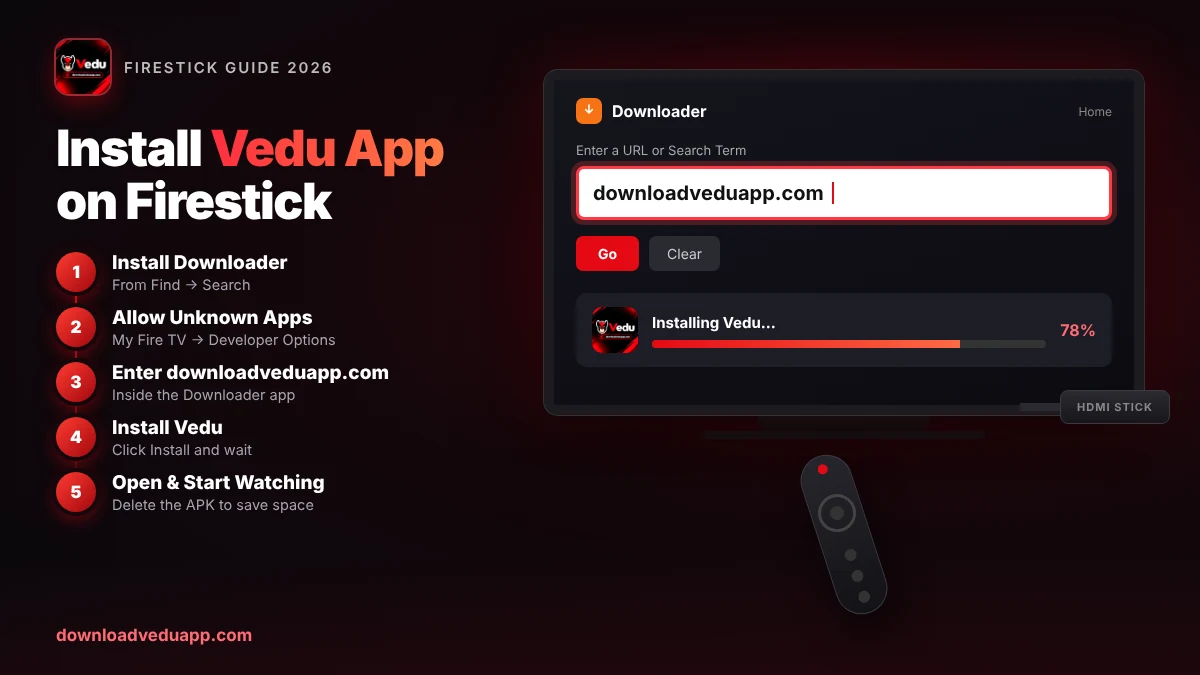
Go through these steps in order to set up the Vedu app for Firestick. Step 2 trips up more people than any other, so give it a moment.
Step 1: Get the Downloader App
Downloader is a free app that pulls files from the web onto your Fire Stick. It’s the simplest way to get the Vedu app for Firestick onto your device.
- On the home screen, go to Find > Search.
- Type Downloader.
- Pick the orange Downloader app by AFTVnews.
- Click Get or Download.
Want to know more about it first? The official Downloader page by AFTVnews explains what it does.
Step 2: Allow Unknown Apps
Out of the box, your Fire Stick only trusts the Amazon Appstore. You need to tell it Downloader is allowed to install things too.
- Open Settings (the gear icon).
- Go to My Fire TV.
- Select Developer Options.
- Click Install Unknown Apps.
- Switch Downloader to ON.
No Developer Options on your screen? Newer Fire Sticks hide it. Go to Settings > My Fire TV > About, highlight your device name, and press Select on your remote seven times. A message pops up saying you’re now a developer. Go back one screen and the option will be there.
On some older Fire Sticks, this setting is called Apps from Unknown Sources. Same thing, different name.
Step 3: Download the Vedu APK
- Open Downloader.
- Click Allow if it asks to access your files.
- In the URL box, type downloadveduapp.com and click Go.
- Scroll down to the download button on our site and click it.
- Wait for the download to finish.
Typing with a remote is painfully slow, we know. Still, check the address before you hit Go. One wrong letter and you’ll land on a completely different site.
Step 4: Install Vedu
- An install screen appears once the download is done.
- Click Install.
- Wait for the App installed message.
- Click Done. Don’t open it just yet.
Step 5: Delete the APK and Open the App
You don’t need the APK file anymore. Leaving it there just eats space your Fire Stick needs for buffering.
- In Downloader, click Delete when it asks about the file.
- Confirm with Delete again.
- Press Home, then open Vedu from Your Apps & Channels.
And you’re done. The Vedu app for Firestick is now on your TV.
How to Put Vedu on Your Home Screen
Sideloaded apps, including the Vedu app for Firestick, get buried at the back of your app list. Annoying, but easy to fix:
- Hold down the Home button.
- Choose Apps.
- Scroll to Vedu and highlight it.
- Press the Menu button (three lines).
- Pick Move to Front.
Now it sits right up front with Netflix and YouTube.
Using Vedu With a Fire TV Remote
The Vedu app for Firestick started life as a phone app, built for touch screens. With a remote, a few things feel a little different:
- Arrow keys move around menus and movie lists
- Select (center button) opens a title or starts playing it
- Back takes you one screen back
- Menu sometimes shows extra player options
- Play/Pause controls the video
If the remote suddenly stops responding inside the app, press Back once. That usually wakes it up. And if one button just won’t get clicked, a free mouse toggle app solves it.
Vedu App for Firestick Not Working? Try These Fixes
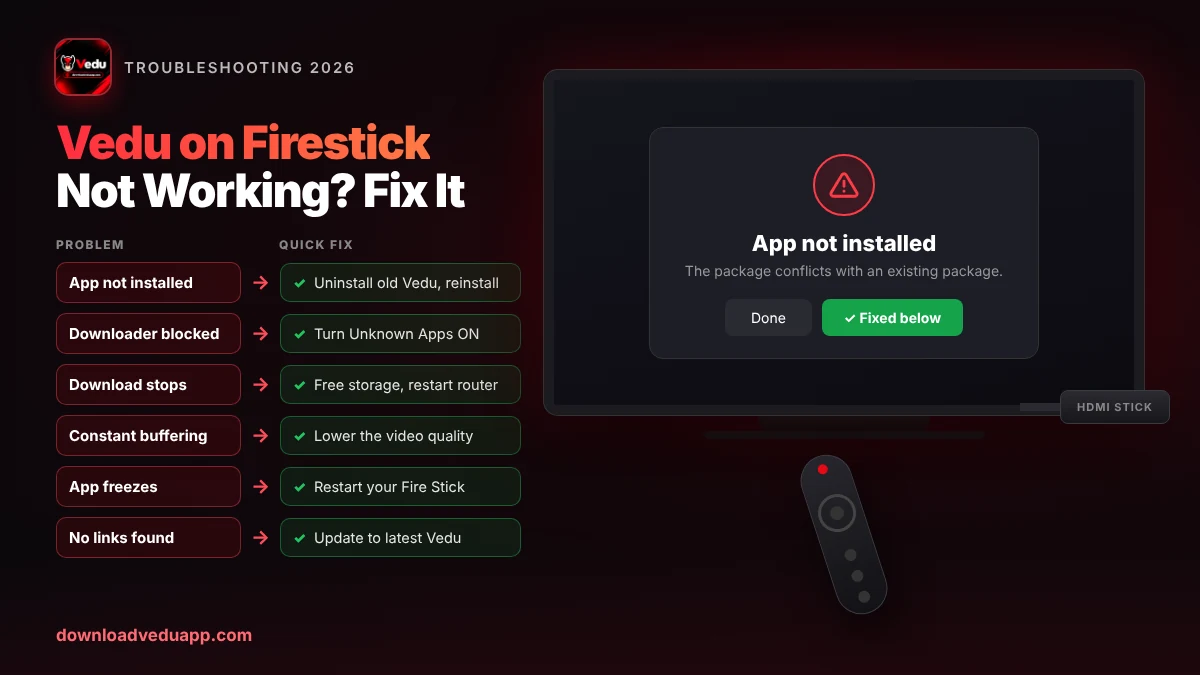
Most problems with the Vedu app for Firestick have a quick fix. Match what you’re seeing to the table:
| What You See | Probable Cause | What to Do |
|---|---|---|
| “App not installed” | An old Vedu from another website | Uninstall it, then install again |
| Downloader won’t install the file | Unknown Apps is still off | Go back to Step 2 |
| Download stops halfway | Weak Wi-Fi or low storage | Free up space, restart your router |
| Constant buffering | Slow internet or a busy server | Drop the quality or switch servers |
| App freezes or lags | Fire Stick has been on for days | Restart it |
| “No links found” | Outdated app version | Install the latest Vedu APK |
Two shortcuts you’ll use a lot:
- Restart: Settings > My Fire TV > Restart
- Clear cache: Settings > Applications > Manage Installed Applications > Vedu > Clear Cache
Still stuck? Our full troubleshooting guide covers everything: Vedu App Not Working? 14 Fixes That Actually Work.
How to Update Vedu on Firestick
Appstore apps update themselves. The Vedu app for Firestick doesn’t. When a new version drops, you install it by hand, which takes about a minute:
- Open Downloader.
- Go to downloadveduapp.com.
- Download the newest version.
- Click Install. No need to remove the old one first.
Your settings and watch list normally stay put. Check back on our site every couple of weeks so you’re never stuck on an old version.
Simple Habits for Smoother Streaming
A Fire Stick is a tiny computer squeezed behind your TV. Treat it well, and the Vedu app for Firestick will run much better.
- Restart it once a week. Nobody ever turns these things off, and they get sluggish after a few days.
- Keep 1 GB free. Uninstall apps you haven’t opened in a month.
- Get your Wi-Fi closer. The back of a TV is a terrible spot for a signal. A cheap Wi-Fi extender or Amazon’s Ethernet adapter makes a big difference.
- Clear Vedu’s cache monthly. It takes ten seconds and makes the app noticeably faster.
- Match quality to your speed. On slow internet, HD or 480p beats Full HD that stops every minute.
- Stick to one download source. Mixing APKs from random sites causes install errors, and tampered files can hide malware.
Is It Safe to Install Vedu on Firestick?
Sideloading the Vedu app for Firestick is safe on its own. Amazon built the feature in, and plenty of popular apps are installed this way.
The real risk is the file itself. Some sites hand out modified APKs packed with extra ads or worse. So keep it simple: download from one trusted source, give “Install Unknown Apps” permission only to Downloader, and delete the APK once you’re done.
Extra careful? Turn Install Unknown Apps off for Downloader after installing. Just flip it back on before your next update.
Frequently Asked Questions
Is Vedu on the Amazon Appstore?
No, it isn’t. You’ll need to sideload the Vedu app for Firestick using Downloader, as shown above.
Does Vedu cost anything on Fire Stick?
No. The Vedu app for Firestick is free, with no subscription and no card details needed.
Why can’t I find Developer Options?
Newer Fire Sticks keep it hidden. Go to Settings > My Fire TV > About, highlight your device name, and press Select seven times.
Will Vedu run on a Fire Stick Lite?
Yes, the Vedu app for Firestick runs on the Lite. It has less storage, though, so keep at least 1 GB free and clear the cache now and then.
Can I watch in 4K?
With the Vedu app for Firestick, that depends on the title and your hardware. A Fire Stick 4K or 4K Max on fast internet will give you the best quality each video offers.
Do I need a VPN?
Usually not. If the app won’t load anything, your internet provider might be blocking it. Restarting your router or switching your DNS often sorts it out.
Will updating erase my watch list?
Normally no. Installing over the old version keeps your data. Only uninstalling wipes it.
Why does it say “App not installed”?
You’re probably installing over a version that came from a different website. Uninstall the old one first, then try again.
Ready to Watch?
Downloader, unknown apps, APK, install. Four moves and roughly five minutes, and the Vedu app for Firestick is on your big screen for good.
Bookmark our site so updates are quick. And if something goes wrong along the way, drop a comment with your Fire Stick model and the exact error message. We read every one, and we’ll help you get it working.