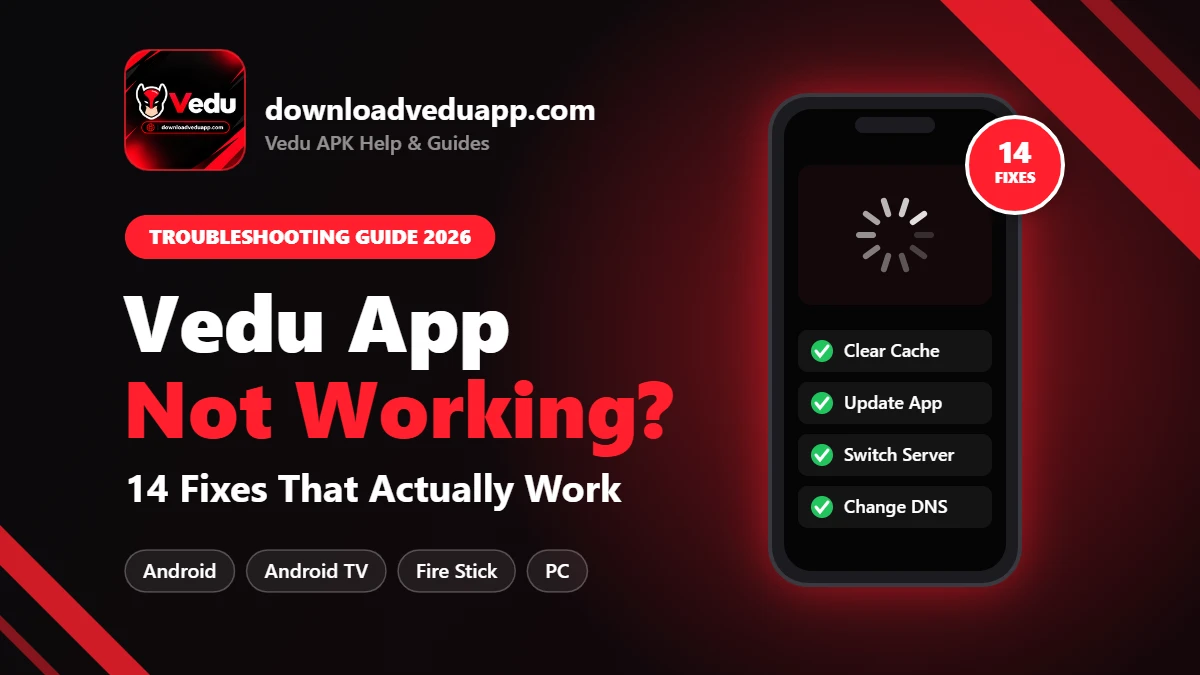
Vedu App Not Working? 14 Fixes That Actually Work (2026)
Quick answer: If you find the Vedu app not working, first check your internet connection. Then clear the app cache and update Vedu to the latest version. If a movie still won’t play, switch servers in the video player. These four simple steps fix the problem for most people in just a few minutes.
You finally sit down to watch something, tap play, and nothing happens. The video keeps loading, the screen goes black, or the app closes on its own. Finding your Vedu app not working is frustrating, especially when it worked fine yesterday.
The good news is that Vedu rarely breaks for good. In most cases, something small on your phone or TV is getting in the way. Below, you’ll find every fix that works, starting with the quickest ones. Go through them in order and stop as soon as your app starts playing again.
Why Is the Vedu App Not Working?
Before you start tapping random settings, it helps to know what usually goes wrong. Vedu isn’t available on the Play Store, so it doesn’t update itself, and it pulls videos from outside servers. That makes it more sensitive than apps like YouTube.
Here are the most common reasons behind the Vedu app not working:
- Slow or unstable internet. Video streaming needs a steady connection. A weak signal causes endless loading.
- Old app version. When servers change, older versions can no longer find videos. This is the number one cause of “No links” or “Video not available” errors.
- Full or corrupt cache. Over time, temporary files pile up and confuse the app.
- A busy or dead server. Sometimes the server for one movie is down while others work fine.
- Low storage or RAM. Phones and TV boxes with little free space struggle to buffer videos.
- Blocked by your internet provider. In some regions, internet providers block streaming sites, so the app can’t connect at all.
- Phone settings getting in the way. Battery saver, the wrong date and time, or an outdated Android System WebView can all stop playback.
Now let’s match your exact problem to the right fix.
Quick Check: Find Your Problem and Jump to the Fix
Short on time? Find what you’re seeing in the table below and go straight to the matching fix.
| What You See | Most Likely Cause | Try These Fixes |
|---|---|---|
| Video keeps loading or buffering | Slow internet or busy server | Fix 1, Fix 4, Fix 5 |
| App closes as soon as you open it | Corrupt cache or old version | Fix 6, Fix 7, Fix 8, Fix 14 |
| “No links” or “Video not available” | Old version or dead server | Fix 4, Fix 8 |
| Black screen but sound plays | Player or WebView problem | Fix 11, Fix 4 |
| App won’t load anything at all | Internet provider block or server down | Fix 1, Fix 13 |
| App is very slow or freezes | Low storage, low RAM or full cache | Fix 2, Fix 6, Fix 9 |
| Video stops when the screen turns off | Battery saver | Fix 12 |
| “Connection error” or “SSL error” | Wrong date/time or network block | Fix 10, Fix 1, Fix 13 |
14 Fixes for Vedu App Not Working (Try Them in This Order)
The first few fixes for the Vedu app not working take seconds. The later ones take a bit longer, so only move on if the earlier ones didn’t help.
Fix 1: Check Your Internet Connection
Open YouTube or a speed test site and see if it works there. For HD streaming, you need at least 5 Mbps. If your Wi-Fi is slow, switch to mobile data for a minute, or restart your router by unplugging it for 30 seconds.
Fix 2: Force Stop the App and Open It Again
Sometimes the app just gets stuck. Go to Settings > Apps > Vedu and tap Force Stop. Then open it again. It sounds too simple, but it works more often than you’d think.
Fix 3: Restart Your Phone or TV
A restart clears the memory and closes apps running in the background. Turn your device off, wait 10 seconds, and turn it back on.
Fix 4: Switch the Server Inside the Player
This is the fix most people miss. When a movie won’t play, often just that one server is down. Open the movie, look for the Server or Source option in the player, and pick a different one. Try two or three before you give up on that title.
Fix 5: Lower the Video Quality
If the video plays but keeps pausing to load, drop the quality from Full HD to HD, or from HD to 480p. A smooth video at lower quality is much better than a sharp one that stops every minute.
Fix 6: Clear the App Cache
Go to Settings > Apps > Vedu > Storage and tap Clear Cache. This removes temporary files without deleting your downloads or watch list. Do this whenever the app starts acting slow.
Fix 7: Clear App Data
If clearing the cache didn’t help, tap Clear Data on the same screen. This resets the app as if it were freshly installed. It will erase your watch history, settings, and possibly any downloads saved inside the app, so only try this after Fix 6.
Fix 8: Update to the Latest Version
This fixes more problems than anything else on this list. Old versions stop working when the app changes its servers. Download the latest Vedu APK from our website and install it over the old one. You don’t need to uninstall first.
Fix 9: Free Up Storage Space
Video apps need free space to buffer. Keep at least 1 GB free on your phone or TV box. Delete old downloads, unused apps, or large videos you no longer need.
Fix 10: Set the Correct Date and Time
If your date or time is wrong, the app can’t make a secure connection to its servers. Go to Settings > Date & Time and turn on Automatic date and time.
Fix 11: Update Android System WebView
Many streaming apps use Android System WebView to load content. If it’s outdated, you may see a black screen or nothing loads at all. Open the Play Store, search for Android System WebView, and tap Update. You can also check for system updates under Settings > Security > Google Play system update.
Fix 12: Turn Off Battery Saver for Vedu
Battery saver can pause apps in the background, which cuts off your stream. Go to Settings > Apps > Vedu > Battery and choose Unrestricted or Don’t optimize.
Fix 13: Change Your DNS
If the app doesn’t load anything at all, your internet provider may be blocking it. Changing your DNS often solves this. On Android, go to Settings > Network & Internet > Private DNS, choose Private DNS provider hostname, and type dns.google (Google Public DNS) or one.one.one.one. Save and reopen Vedu.
Note: Private DNS is available on Android 9 and newer. The menu path may differ slightly depending on your phone brand.
Fix 14: Uninstall and Reinstall Vedu
If nothing else worked, do a clean install. Uninstall Vedu, restart your device, download a fresh copy of the latest APK, and install it again. This clears out any broken files the earlier fixes couldn’t reach.
Vedu Not Working on TV, Fire Stick or PC?
The fixes above are for phones. Bigger screens have a few problems of their own. Here’s a quick overview, followed by details for each device.
| Device | Where to Clear Cache | Key Tip |
|---|---|---|
| Android TV / TV Box | Settings > Apps > See all apps > Vedu | Keep 1 GB free and use a LAN cable |
| Amazon Fire TV Stick | Settings > Applications > Manage Installed Applications > Vedu | Restart it regularly |
| PC Emulator | Inside the emulator: Settings > Apps > Vedu | Give it 4 GB RAM and 2 CPU cores |
Android TV and TV Boxes
- Clear the cache from Settings > Apps > See all apps > Vedu > Clear Cache.
- TV boxes often have only 8 GB of storage. Keep at least 1 GB free, or videos won’t buffer.
- Use a network cable if your TV has a LAN port. It’s much more stable than Wi-Fi.
- If the remote doesn’t respond inside the app, press Back once and try again.
Amazon Fire TV Stick
- Go to Settings > Applications > Manage Installed Applications > Vedu, tap Force Stop, then Clear Cache.
- Restart the Fire Stick from Settings > My Fire TV > Restart. Fire Sticks slow down badly when they run for days without a restart.
- If the update won’t install, make sure Install Unknown Apps is still turned on for the Downloader app.
PC (Using an Emulator)
- Vedu runs on PC through an Android emulator like BlueStacks. Follow our Vedu for PC guide for the full setup. Update the emulator first, since old versions can cause black screens.
- In the emulator settings, give it at least 4 GB of RAM and 2 CPU cores.
- If videos play with no picture, switch the graphics mode in the emulator settings between DirectX and OpenGL.
Common Vedu Error Messages and What They Mean
An error message tells you a lot about what’s wrong. Here’s a quick summary, with more detail below.
| Error Message | What It Means | How to Fix It |
|---|---|---|
| “App Not Installed” | The new APK doesn’t match the old version’s source | Uninstall the old Vedu, then install the new APK |
| “There Was a Problem Parsing the Package” | Incomplete download or Android version too old | Re-download on a stable connection |
| “Video Not Available” / “No Links Found” | Server down or link expired | Switch servers, then update the app |
| “Connection Error” / “Network Error” | The app can’t reach its servers | Check internet, fix date and time, change DNS |
“App Not Installed”
This usually appears when you install an update on top of a version from a different source. The two files don’t match, so Android blocks the installation. Uninstall the old Vedu first, then install the new APK.
“There Was a Problem Parsing the Package”
The APK file didn’t download completely, or your Android version is too old for it. Delete the file, download it again on a stable connection, and check that your phone runs Android 5.0 or newer. If your phone is older, try the Vedu old version instead.
“Video Not Available” or “No Links Found”
The server for that title is down, or the link has expired. Switch the server inside the player first. If no server works, update the app, because new versions come with fresh links.
“Connection Error” or “Network Error”
The app can’t reach its servers. Check your internet, then fix your date and time. If the error still appears, try changing your DNS (Fix 13).
Is Vedu Down for Everyone?
Sometimes the problem isn’t on your side at all. If you find the Vedu app not working for you and your friends at the same time, the servers are probably down. Wait a few hours, then check our website for a new version. Most outages are fixed within a day or two.
How to Keep Vedu From Breaking Again
A few small habits will stop the Vedu app not working problem from coming back:
- Check for updates every two weeks. Since Vedu doesn’t update on its own, bookmark our site and check back regularly.
- Clear the cache once a month. It takes ten seconds and keeps the app running fast.
- Download from one trusted source. Mixing APKs from different websites is the main cause of “App not installed” errors, and modified copies can also carry malware.
- Keep 1 GB of storage free. Your phone and the app both need room to work.
- Restart your TV or Fire Stick weekly. These devices rarely get switched off, and they slow down over time.
Frequently Asked Questions
Why is the Vedu app not working today?
The most common reasons are an old app version, slow internet, or a server that’s temporarily down. Update the app and switch servers in the player first. If it still doesn’t work, the servers may be down for everyone, so wait a few hours.
Why does Vedu keep buffering?
Buffering means your internet can’t keep up with the video quality. Lower the quality to HD or 480p, move closer to your router, or switch servers in the player.
Will clearing the cache delete my downloads?
No. Clearing the cache only removes temporary files, so your downloads and watch list stay safe. Clearing data, on the other hand, resets the app completely.
Why does Vedu show a black screen with sound?
This is usually a player or WebView issue. Update Android System WebView from the Play Store, then try a different server for that video.
Do I need to uninstall Vedu before updating?
Not usually. You can install the new APK over the old one. Only uninstall first if you see the “App not installed” error.
Why does Vedu work on Wi-Fi but not on mobile data?
Your mobile network may be blocking the app’s servers. Try changing your Private DNS to dns.google, as explained in Fix 13.
Is it safe to download a Vedu update from any website?
No. Some websites share modified APKs that can contain malware. Always download updates from one trusted source and stick with it.
Final Thoughts
When you find the Vedu app not working, it can feel like something serious broke. Most of the time, it’s just an old version, a full cache, or one bad server. Start with the quick fixes, update the app, and switch servers in the player. That combination gets almost everyone back to watching.
If you’ve tried all 14 fixes and still have the Vedu app not working, leave a comment below with your device name and the exact error you see. We read every comment and will help you figure it out.